 Verho
VerhoHow to use Verho
Verho works on Claude and ChatGPT, in this browser. It shows you what it finds, and you decide what to replace.
-
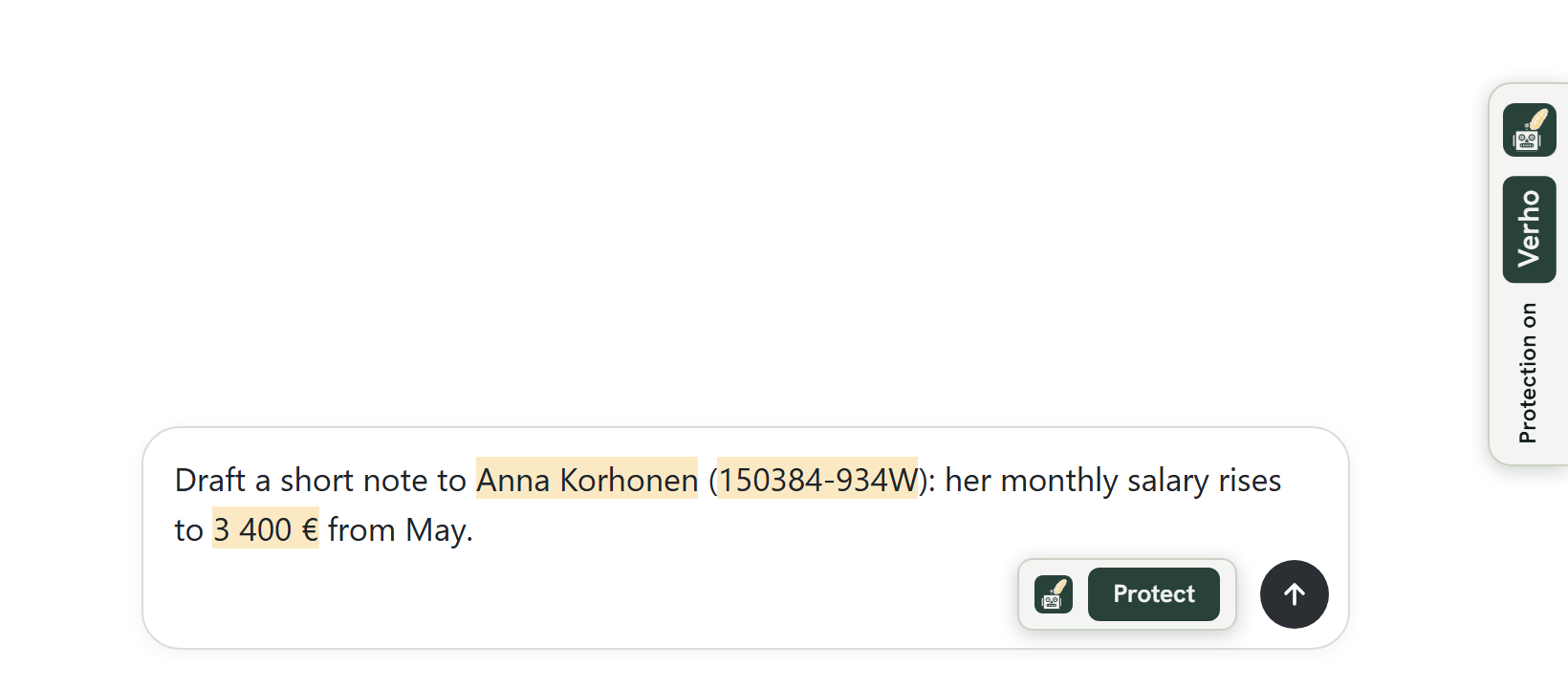
Check that protection is on
The Verho tab at the right edge of the page says Protection on while it checks what you type, and Ready before you start. Names, identity codes, account numbers and other personal data are marked in the message box as you type. If the tab says Protection unavailable, nothing is being checked, and it says why.
-
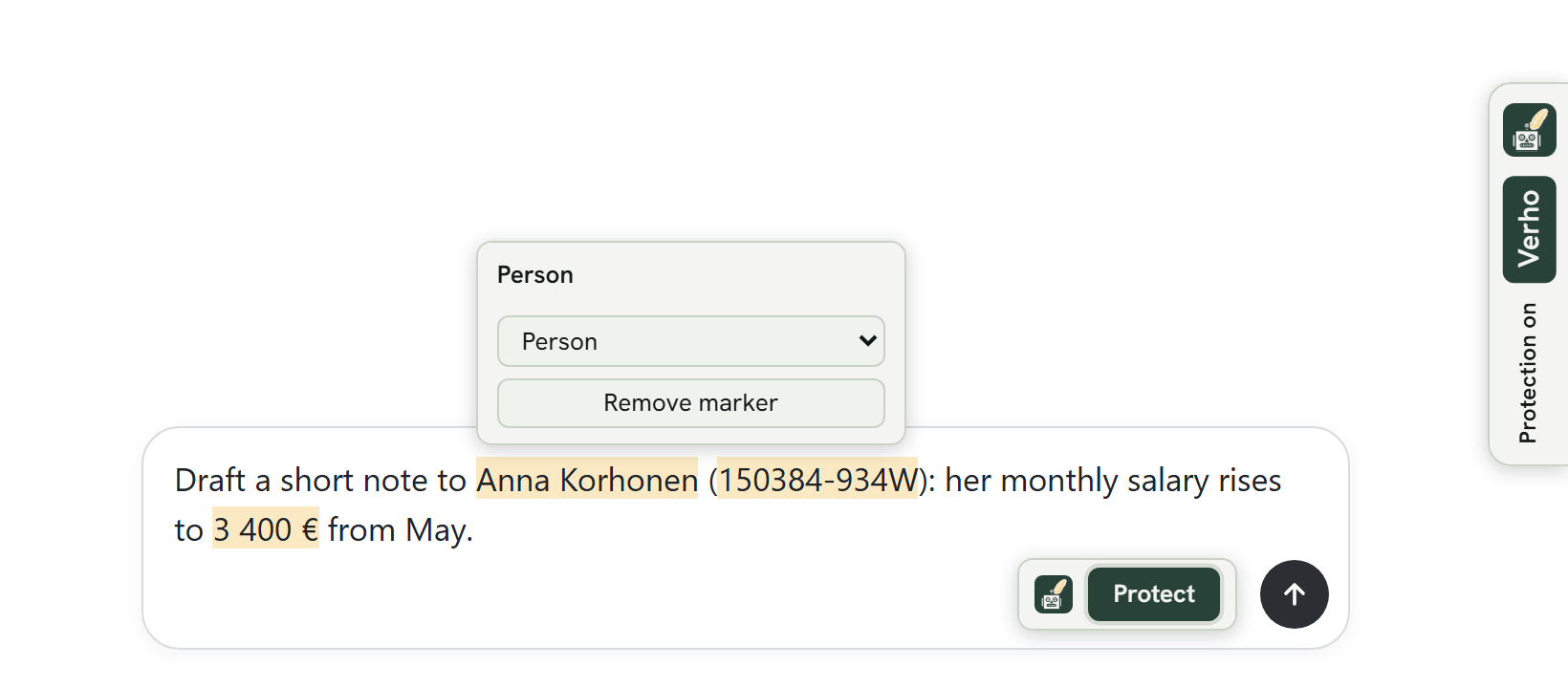
Check what was found
Point at a marked value to see what kind it is. Change the kind, or press Remove marker if it is nothing personal. If Verho missed something, select it and press Protect this.
-
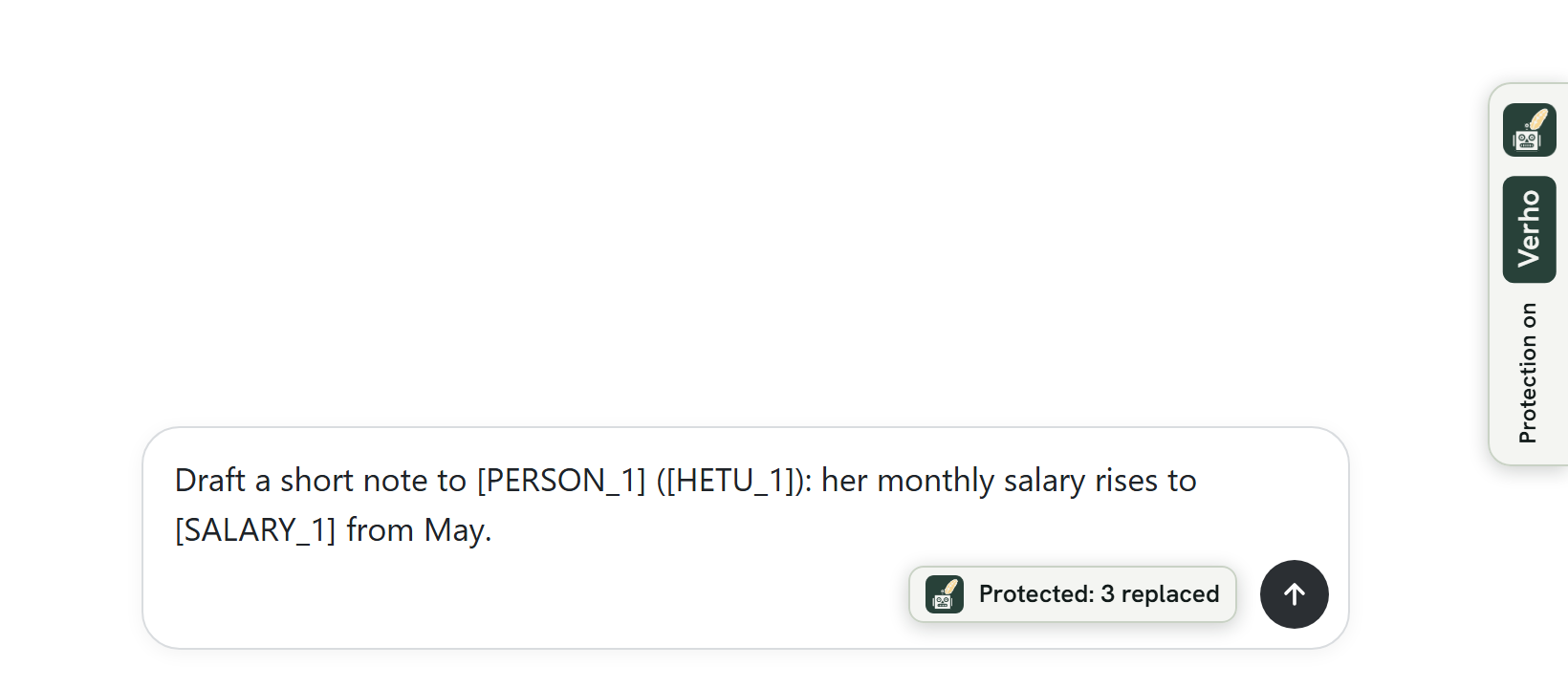
Press Protect, then send
Protect is beside the send button. It puts placeholders such as [PERSON_1] in place of the marked values and keeps the real ones in this browser. Then send as you always do.
-
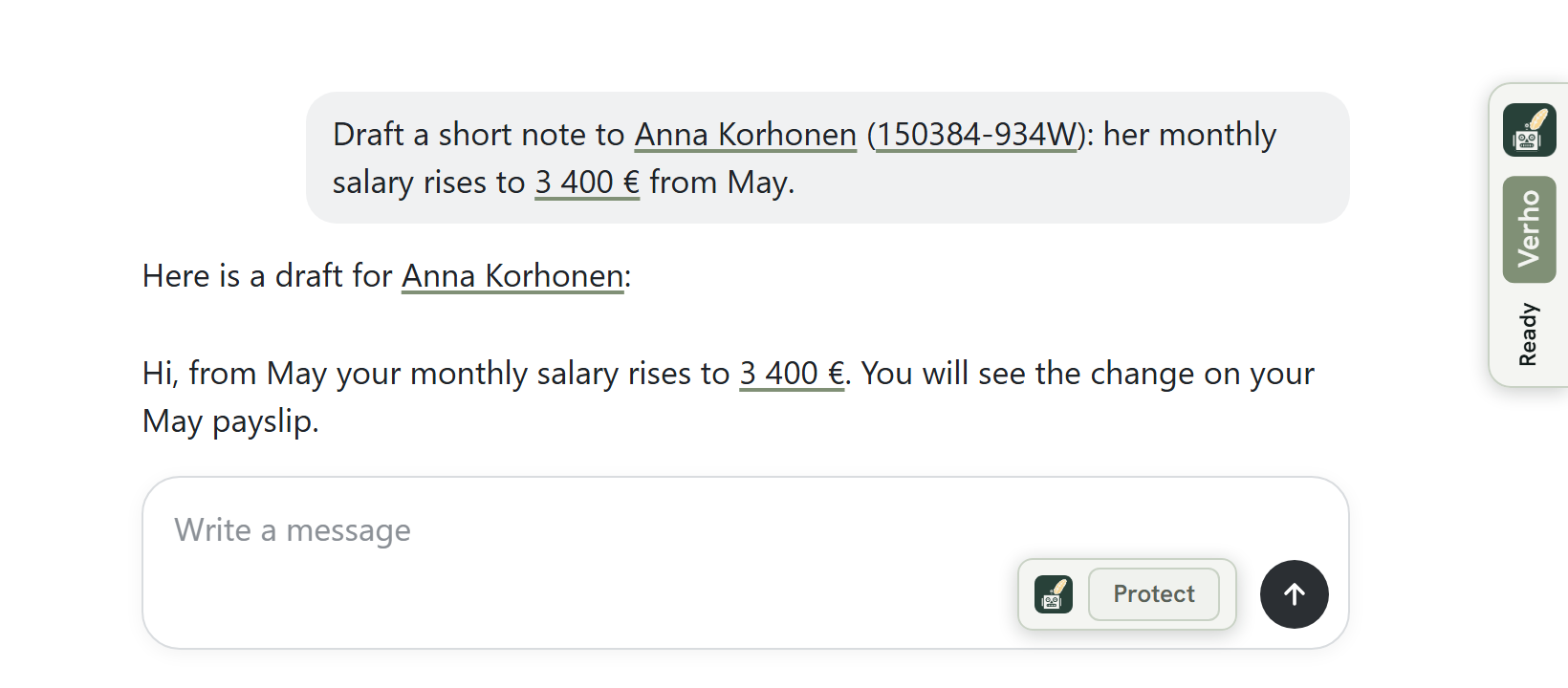
Read the answer with the real values
The answer comes with the placeholders, and Verho puts the real values back on your screen, underlined. When the AI writes an email for you, press Copy with the real values on it.
Where your text goes
What you type is checked on Verho's server in Helsinki and then forgotten: it is not kept, not even in a log. What you send after Protect has placeholders in place of the values, and the values behind them stay in this browser only, encrypted. ChatGPT's page sends what is in its message box to OpenAI before you press send. Verho asks once whether to stop that: press Stop it. You can change this in Verho's settings.
More in the privacy notice and the terms of use.